Uploading documents to your account
Published: Oct 17, 2022
Updated: Sep 26, 2025
Learn how to upload the documents required for your Questrade account
Looking to upload some documents for your account?
We may require you to upload documents when opening an account, or for certain account related requests. We’re happy to help with the process.
Please follow these easy steps to upload:
Upload - Desktop/Laptop
Log in (opens in a new tab) to your account
On the top navigation bar, head over the Documents page, and click on Upload documents.
Select the account you want to upload your documents to and the document type (or form name) you want to upload.
Click the Upload button to upload your document.
Congrats! You’ve finished uploading a document for your account.
If you’d like to check on the status of your upload, feel free to check the Recent upload history section which you can find on the Documents page.
Upload - Mobile
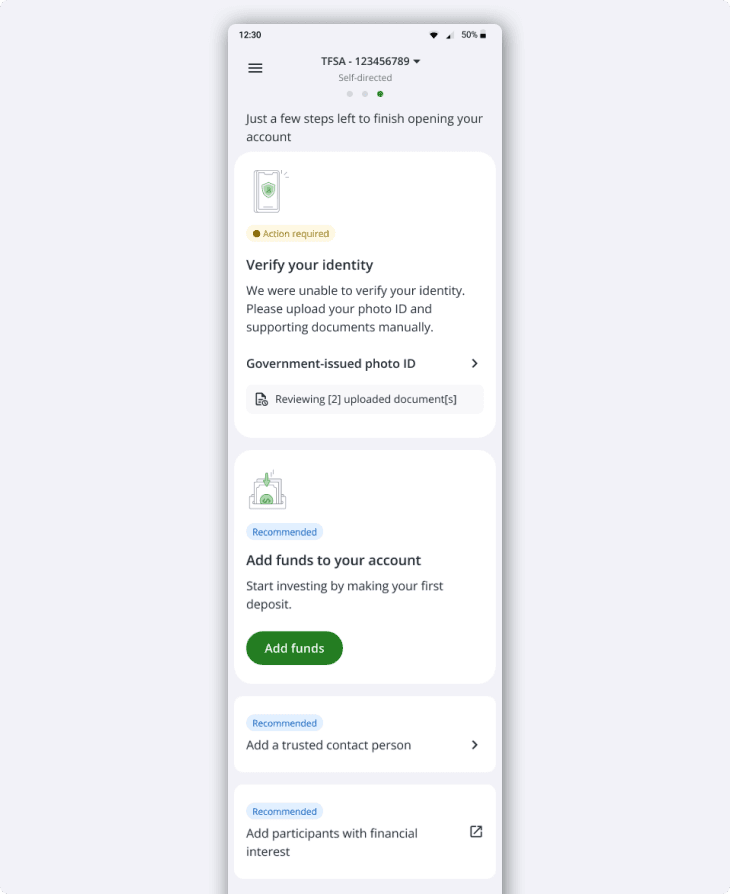
When you are required to upload a document, you will get a screen telling you what documents you need.
If you need to download a document to print and sign, a Download button will appear.
When you have your documents ready, tap Upload to begin uploading.
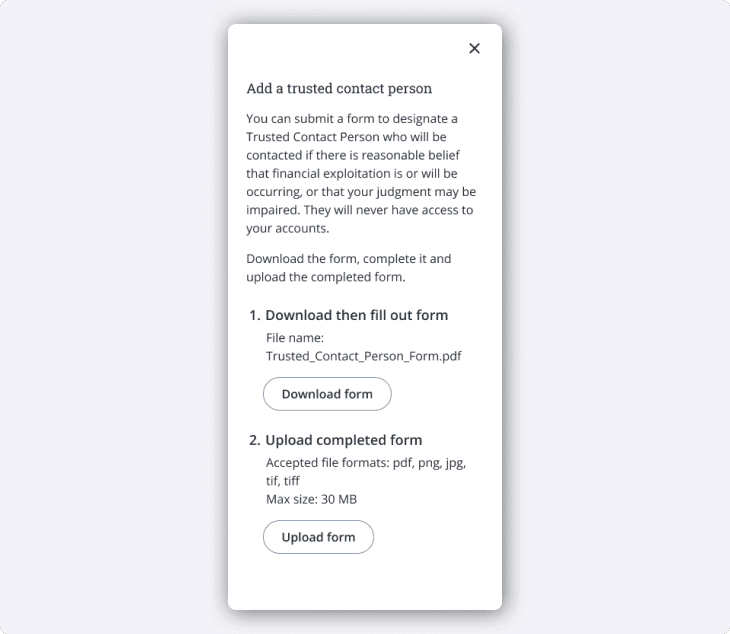
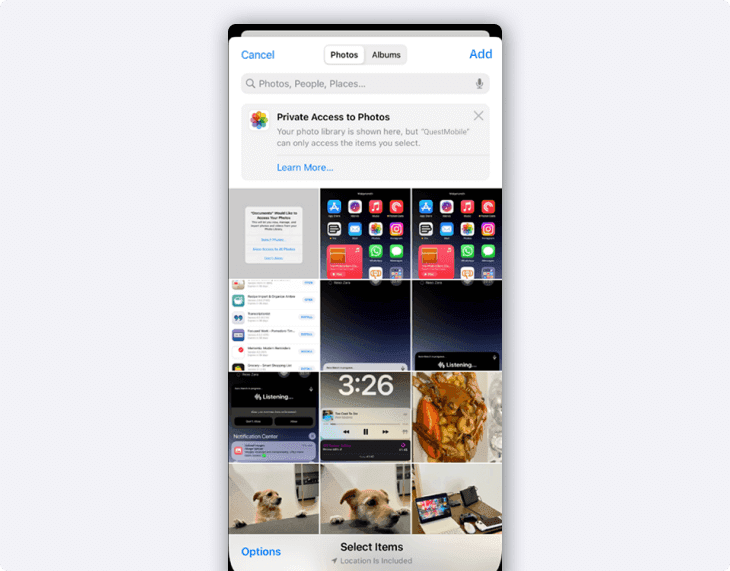
To upload the document, you can either take a picture and upload from your photo library, or upload the document as a file. Select the upload method to continue.

Use your device’s interface to select the files to upload.
If your documents uploaded successfully, you should see confirmation, and a prompt for any more uploads or steps required.
Tap one of the prompts to upload additional documents.
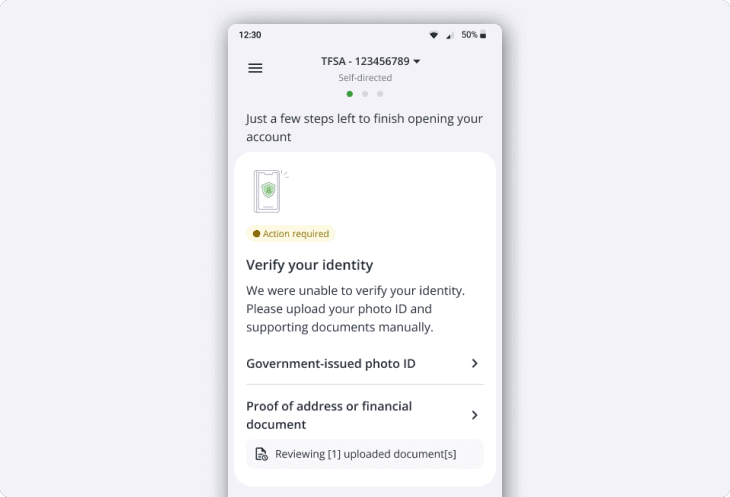
When you have uploaded all your documents, there may be a review period, as seen on screen. From here you can scroll down to see if there is anything else to do while your documents are in review.
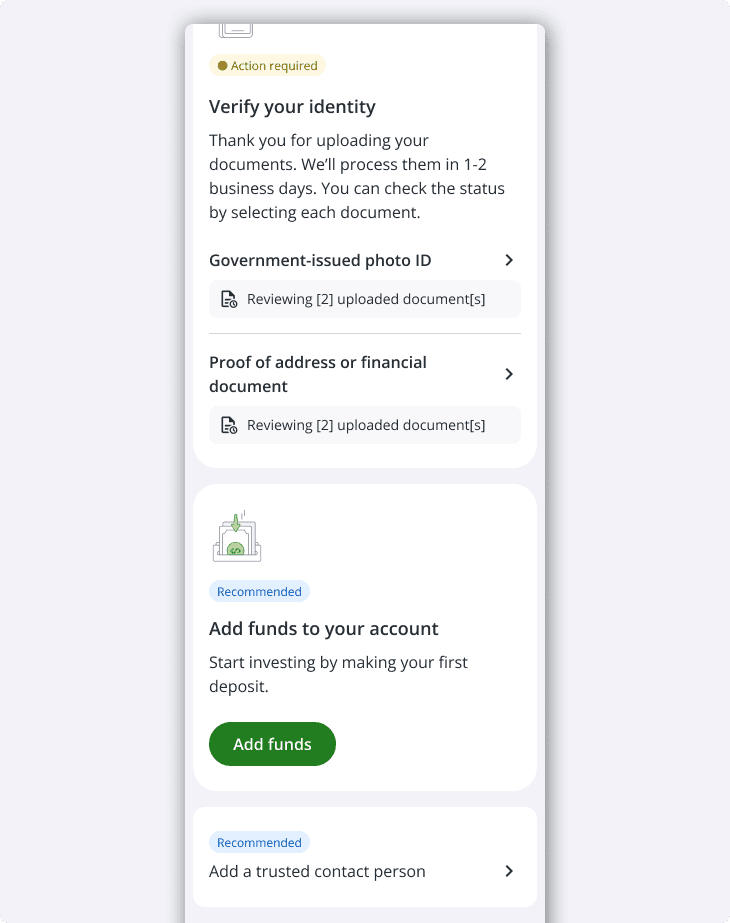
If you’d like to check on the status of your documents, sign in and swipe over to the right-most screen. This will display any items flagged “Action required” or “recommended”.