Option quotes and trading
Published: Oct 17, 2022
Updated: Mar 24, 2026
Explore the advanced options trading features available with Edge Mobile including custom strategies and more.
Edge Mobile unlocks the power of options trading on the go, and allows you to easily place single and multi-leg options orders along with custom strategies.
New to trading options?
Learn more about the basics of trading options, or learn more about options strategies.
To bring up the options “chain” for a Stock, ETF or Index, simply search for a quote using the mini quote toolbar at the bottom of your screen.

Alternatively, tap any of the symbols in your watchlists, positions, or orders pages to quickly pull up the quote for that symbol.
Option quotes
On the quotes page, you can switch between viewing the level 1 details, and Options using the button above the chart.
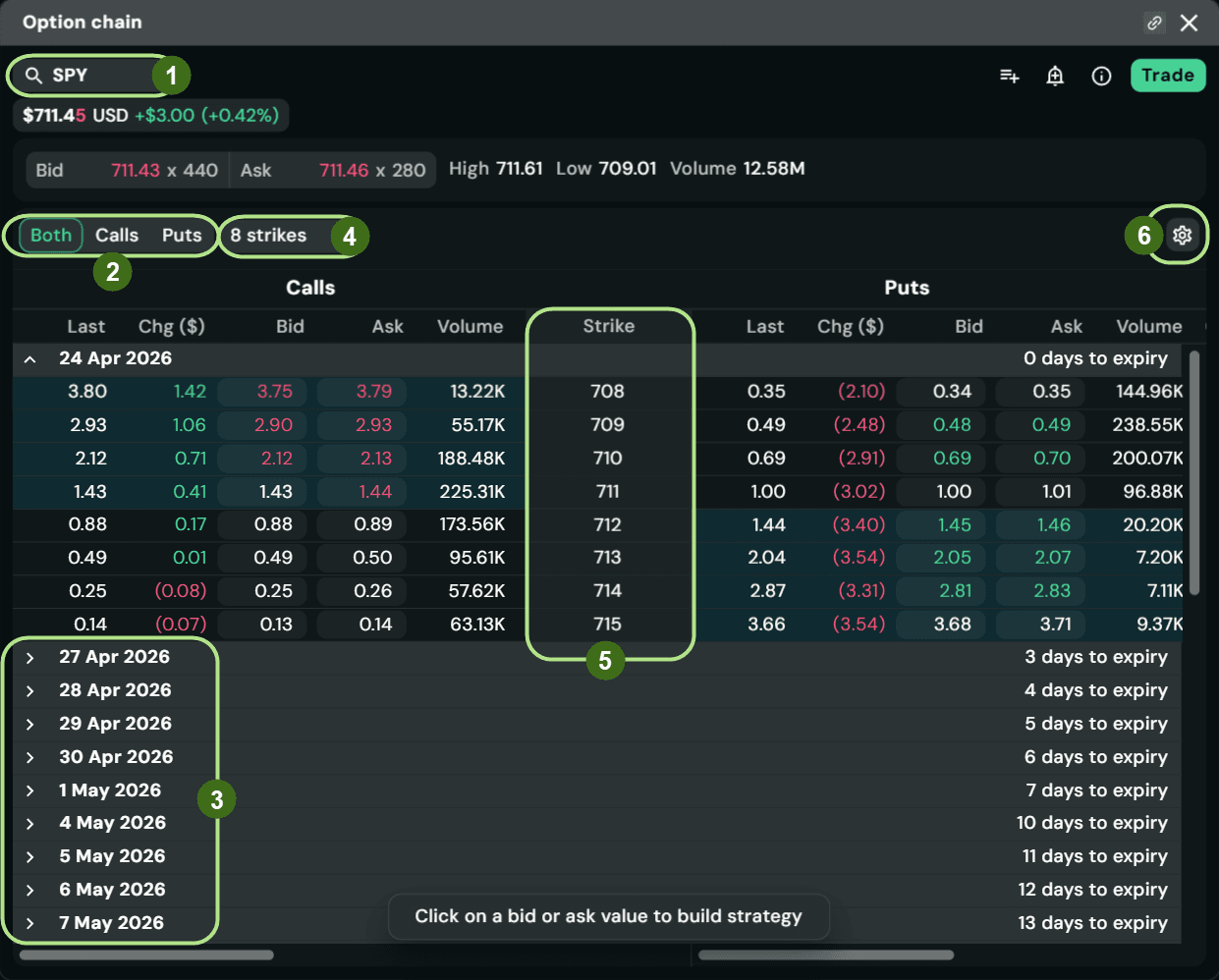
When viewing an Option quote for a stock, ETF or underlying index you’ll see a detailed page known as the “options chain”.
A live streaming quote for the underlying symbol is shown at the top, and if you’re subscribed to the appropriate market data add-on (OPRA for U.S. exchanges, MX for Canadian exchanges), the options chain will also stream and update in real-time.

Note: Securities shown are for illustrative, educational, and visual purposes only, and should not be relied upon as financial advice. The information provided is not intended to be and should not be construed as a recommendation, offer, or solicitation to buy or sell.
You can also tap the Snap Quote button to refresh all the quotes on this page using complete market data from all sources.
Note: Tapping snap quote will disable streaming temporarily until you reload the quote, or navigate to a new page.
There’s also handy shortcuts to add this underlying symbol to a watchlist, or set up a smart alert. Select the green Trade button here to quickly jump to order entry.
Let’s take a deeper look at the area right above the options chain with our expiry dates:
Toggle between viewing all expirations, near, far, or a select date.
Tap to switch your expiration date, or swipe left and right to view different expiration dates available in the selected range.
Tip: Don’t see the one you’re looking for? Make sure you select “All expirations” in the menu by #1.
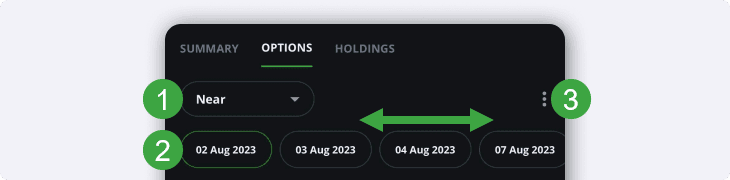
3. Tap the edit button with 3 vertical dots to change the Strike prices shown, or to add/remove custom data columns.
We’ll cover the additional data columns in more detail below.
Right below the strike prices, you’ll see the detailed “options chain” with the strike prices shown in the middle.
You’ll also see the bids and asks in each column under the type of option (Call or Put).
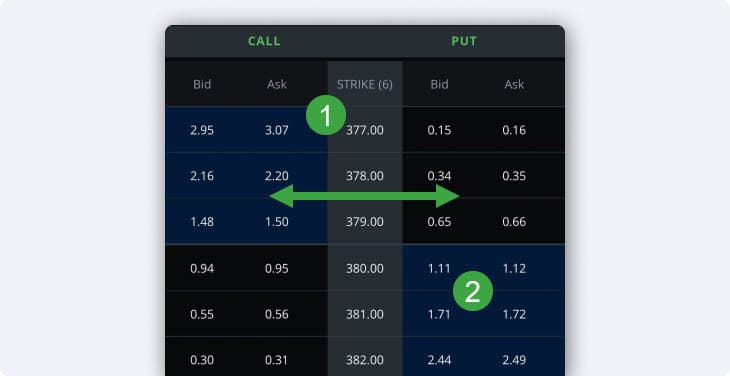
Tap on any of the Strike prices in the middle column to bring up a detailed Options quote for that Call and Put.
Tip: Don’t see the strike price you’re looking for? Make sure to enable “All strikes” from the additional options menu right above.
We’ll cover the more detailed option quote later on.
Tap any of the Bid or Ask prices as a shortcut to quickly jump to an order entry window, with that price pre-filled as a limit-buy order.
You can also Swipe left and right on the information columns to view more data like the volume, or open interest. We’ll cover this in more detail down below.
Tip: If you’re subscribed to an options market data add-on, the options chain (Bid, Ask, Greeks and more) will also stream and update in real-time. Alternatively, you can always tap the Snap Quote button at the top to refresh the information.
Detailed call and put quotes
Found the contract you’re looking to buy or sell in the larger “options chain” above, but looking for more detailed information? Edge Mobile has you covered with our detailed Options quote pages.
You can pull up a detailed options quote by tapping on any of the strike prices in the middle of the options chain.
Tip: You can also add this quote to your watchlist to easily reference it later on prior to the contract’s expiry. Just tap the Star button at the top of the quote to add it to one of your watchlists.
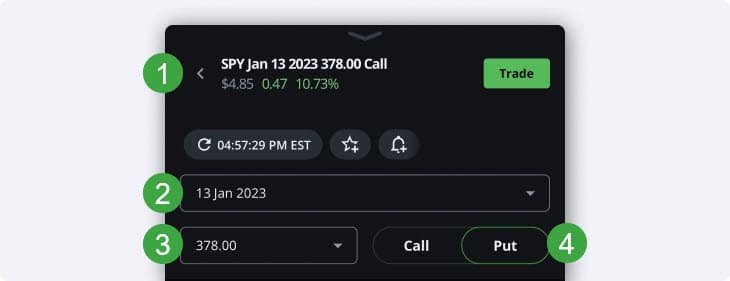
At the top, you’ll see a quote for the selected options contract along with the recent price action and snap quote buttons.
You can also tap the Trade button to go right to order entry for this specific option contract.
If you’re subscribed to the appropriate options market data add-on, this quote will also stream and update in real-time.
Switch between different Expiry dates using this menu.
Change which Strike price you’re viewing here.
Toggle between viewing the Call or Put quotes for this expiry and strike.
Below the menu options at the top, you’ll see a mini chart for the option contract you’re viewing along with the Bid, Ask, Day range and Volume.
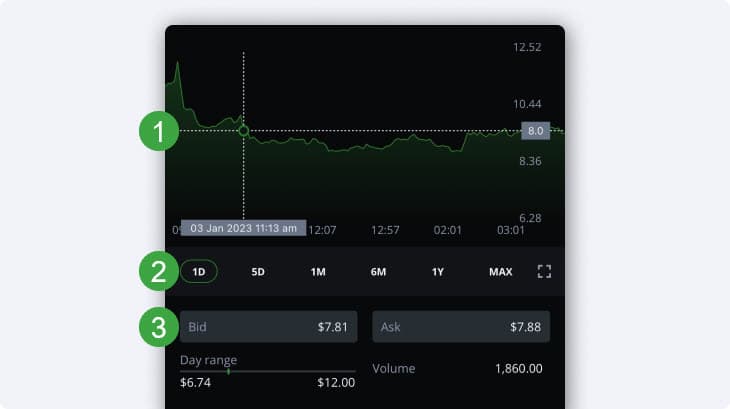
To quickly reference a data point anywhere on the mini-chart, simply hold and drag your finger to the selected date or time range.
Switch between various time ranges for the mini chart, or tap the full screen button on the bottom right to bring up a detailed candlestick chart.
Tap on the Bid or Ask prices to quickly jump to the order entry screen.
The price you tap on will automatically be pre-filled as a limit order.
At the bottom of your screen, you’ll see other relevant information including the Bid & Ask sizes, volume, open interest and more.
Custom columns

Looking for more data?
You can add custom columns by tapping the menu button with three vertical dots above.
The following data columns are displayed by default for options in Edge Mobile:
Bid
Ask
Last (traded price)
Change % (since market open)
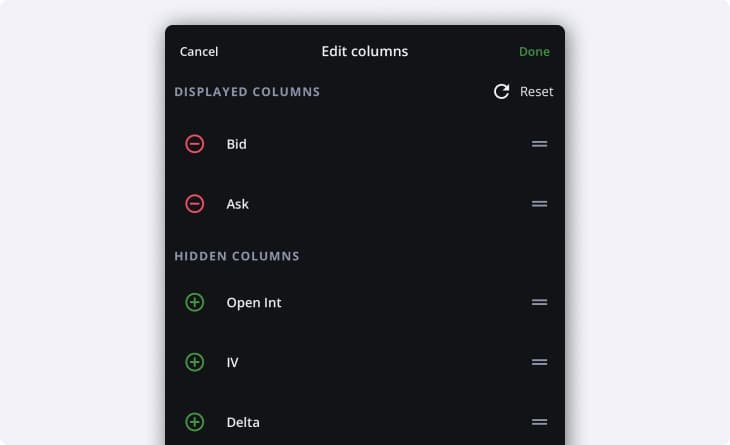
You can also add these additional columns of data:
Open (price at market open)
Volume
Ask size
Bid size
Open Int (Interest)
IV (Implied volatility)
Delta
Gamma
Rho
Theta
Vega
ITM Prob (Probability)
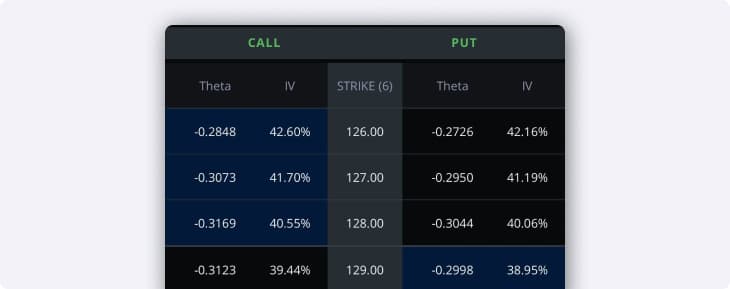
Interested in learning more about the different terms used in options trading such as the “Greeks” (Delta, Gamma…) or Implied volatility?
Explore our Options terminology article here.
Options order entry
Ready to place your Options trade? Follow the steps in this section to learn the basics of Options trading with Edge Mobile along with some tips and tricks.
You can get to the Order entry page by searching for a symbol, tapping the green Trade button, then selecting Options from the menu at the top.
At the top of the page, you’ll see a recent quote for the underlying symbol, along with the snap quote button, and the most recent Bid and Ask.
Tip: If you’re subscribed to the appropriate options market data add-on, this quote will also stream and update in real-time.
Note: If you’re only subscribed to an a-la-carte data plan that does not include options or stocks, the order entry page will not stream in real-time.
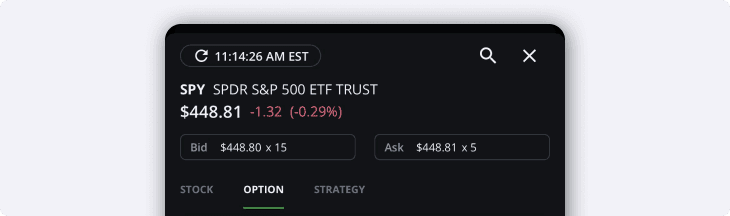
Right below, you can toggle between order entry for Stocks/ETFs, Options, and multi-leg Option strategies. We’ll cover order entry for strategies in more detail down below.
Your selected option contract is visible at the top.
The Last Price, recent Bid & size and Ask & size are shown here.
Green and Red colours correspond to “ticks” in price up or down compared to the previous trade.
Bid and Ask sizes for options represent individual contracts.
Tap any of these to use this price with a limit order below.
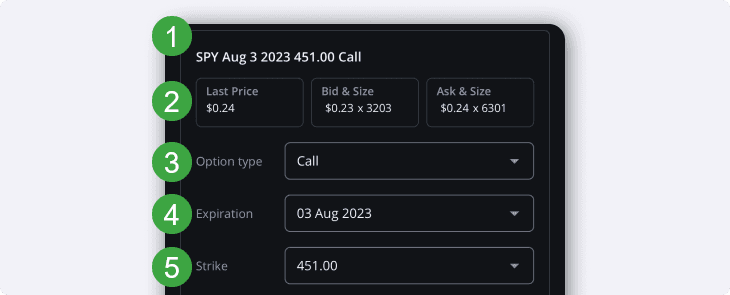
3. Switch between order entry for a Call or a Put.
4. Select the expiration date for your contract.
5. Choose between the different strike prices available.
Right below, you can toggle between buying and selling. Then select your order type and the number of contracts for your order in the Quantity field.
Remember:
1 contract represents 100 shares of the underlying.
Options cannot be traded as fractional shares.
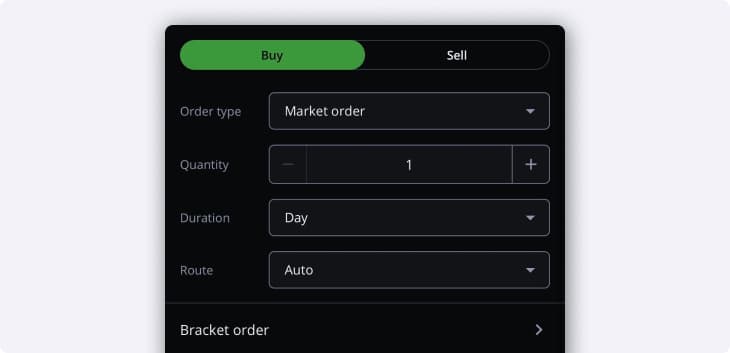
Enter your order details below.
This is the exact same as the order entry process for regular securities.
Bracket orders for options are also available.
Ready to place your trade? Tap the Red or Green Send order button at the bottom, you can also show or hide your balances for a quick preview before your trade.
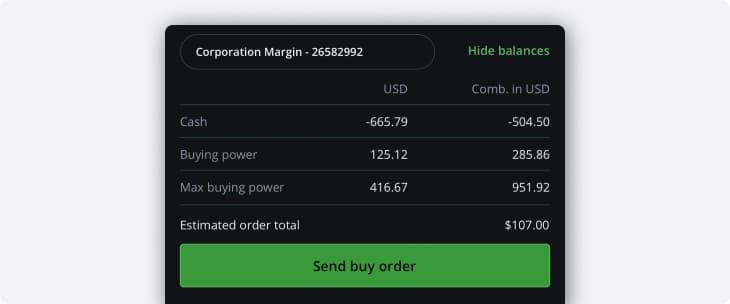
Just like Stock or ETF orders, when you place an options trade, you’ll be shown an order confirmation window. (If you haven’t disabled this in your settings on the More page.)
This page will show a quick preview of your order along with key details you need to know before placing your trade.
At the top, you’ll see a summary of your order shown in green or red depending on if you’re buying or selling.
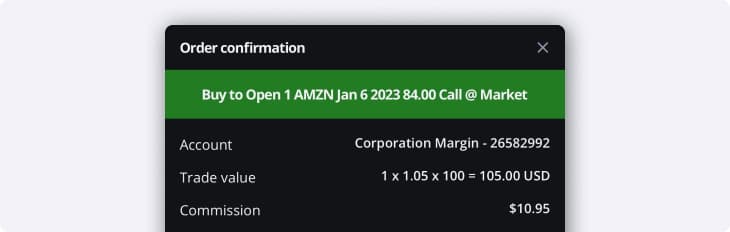
Learn more about the order confirmation screen in this article about equity trades with Edge Mobile.
When you’re ready, tap Send order to send your order to the exchange(s).
Changed your mind or spotted an issue with your order? Tap Do Not Send to go back and edit your order’s details.
Multi-leg option strategies
Edge Mobile also unlocks the power of trading option strategies on the go, giving you access to a wider range of trading strategies when you’re away from your desk.
Whether you’re looking to quickly place common strategies like covered calls, or customize multiple legs of your own strategy, Edge Mobile has you covered.
To access option strategies, simply tap the Strategy button from the main order entry window.
When you first open the Strategy page, you’ll be greeted by a blank order for a custom strategy.
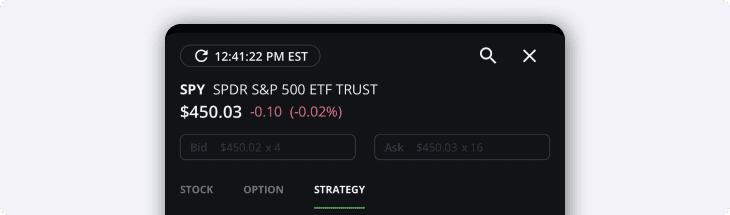
At the top of the page, you’ll see a recent quote for the underlying symbol, along with the snap quote button, and the most recent Bid and Ask.
Tip: If you’re subscribed to the appropriate options market data add-on, this quote will also stream and update in real-time.
You can easily add stock or option “legs” to your order here, or choose from a list of pre-built option strategies.

Order entry for strategies is similar to regular options or stocks/ETFs, but there are a few extra variables to consider.
Learn more about multi-leg options trading here.
Pre-built strategies
If you’re not looking for a custom strategy, you can easily choose from a long list of popular strategies for options and/or stocks.
Tap any of the strategies in the drop down menu to easily pre-fill your order entry window with the appropriate calls, puts and shares.
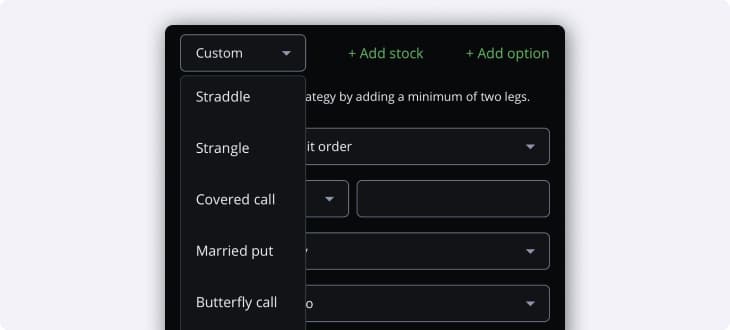
Remember: Certain strategies are only available in a Margin account.
Learn more about option levels at Questrade and which accounts are able to trade specific strategies.
Setting up the strategy
When you’re setting up a strategy, there’s a ton of information available on the order entry page which can help influence your trading. Continue reading to get a better understanding of the ins and outs of order entry for strategies.
Choose a pre-built strategy from the drop down list, or create your own custom strategy.
The different ‘legs’ of your strategy are visible here. Tap on any of the legs to change details about that specific order.
Certain strategies must follow specific rules around the expiry date, or strike prices. When editing these details, this information will be visible to you.
For example: Calendar spreads require short legs to expire before the long leg.
We’ll cover editing individual legs in more detail below.
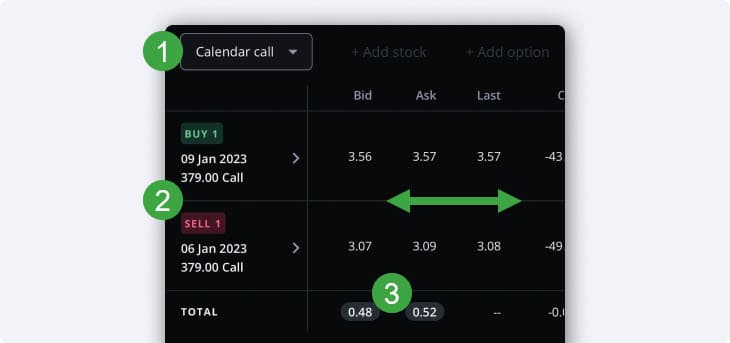
3. The Total column will show you the difference between the Bid and Ask prices of the different legs.
This is used to determine whether this strategy will result in a net debit or net credit to your account.
Scroll left and right to view additional information like the Open interest, Implied volatility, or the ‘Greeks’.
Tip: You can also tap on the amounts in the Total column to quickly add them to a pre-filled limit order below.
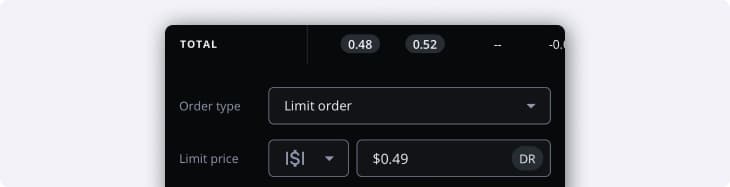
Set up your order details at the bottom including the limit price (if used) and duration or route.
With strategies, the limit price used is the difference between the Bids (or Asks) of the different legs.
DR represents a Net debit to your account after this order executes.
CR represents a Net credit from your account after this order executes.
Editing strategy legs
When you tap on any of the legs in an option strategy order, you’re able to edit key details like the strike price or expiry date.
The quote for the underlying symbol at the top will stream and refresh in real-time, and if you’re subscribed to the appropriate options market data add-on, the Bid and Ask for each option leg will also update in real-time. You can also tap the Snap Quote button to refresh all the prices on this page anytime.
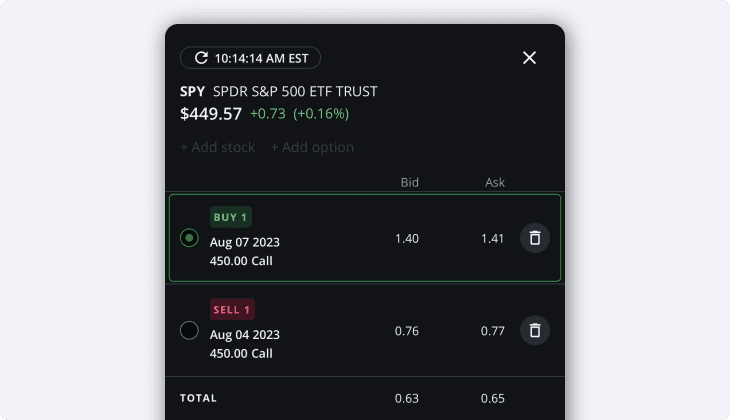
If you’d like to create a custom strategy, you can also remove legs with the trashcan icon on the right, and replace them with other options/stock orders.
At the bottom of your screen, you’re able to edit key details for each leg of your order:
Toggle between Buying and Selling, and the amount of contracts on the right.
Select your desired Quantity of contracts (or shares) in this leg.
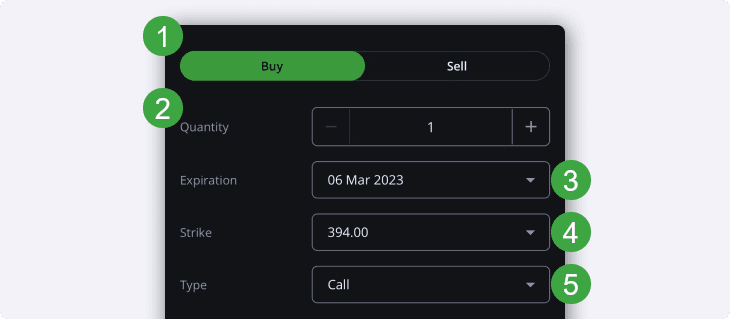
3. Choose your Expiration date.
4. Select your Strike price from the drop down menu.
5. Switch between Calls and Puts.
Tip: If you can’t change the expiration date or strike price in this window for the second leg of your order, this is most likely because of a specific condition for the type of strategy you’re using.
For example: Vertical spreads require different strike prices, but identical expiration dates. Therefore the expiration date of your second leg can’t be modified.
Learn more about multi-leg option trading and strategies here.