Understanding your trade executions
Published: Oct 17, 2022
Updated: May 05, 2025
Learn the status and important information of your orders once it's been filled.
When you place orders to buy or sell securities on our platform, as your broker we’re required to take your orders and send them to the market to be filled. The process of filling your order is referred to as "trade execution.” An order is considered executed when it gets filled—meaning you received or sold the shares—and not when the order is placed by the investor as not every order you place will necessarily get executed.
The Execution tab allows you to conveniently track your executed orders for the current day or for a certain time period you choose. Below, under the name of the trading platform you use, learn more about how to view and interpret information in this tab.
Note: This help article is for the Edge Web and Edge Desktop platforms specifically.
Head to Explore QuestMobile, or Introduction to Questrade Trading for questions about those platforms.
Questrade Edge Web
To access your execution tab:
Log in to Questrade Edge Web
Click/tap Account
Click/tap Executions
Choose an execution time period (Today, 1 week, 2 weeks, or 1 month)
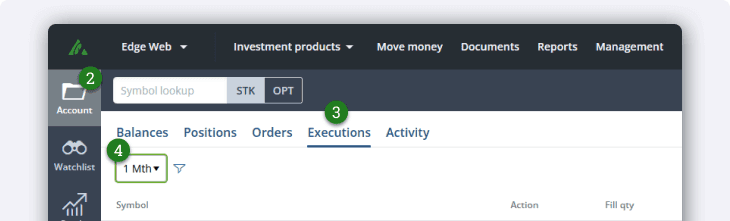
By default, the platform will show you key information about your executions such as symbol, action (buy or sell), quantity, fill price, total value, and time placed. However, you can add more data that is most relevant to you.
To do so:

Click on
Tap the + button to add fields or the -to remove ones
The charts below will define all of the fields you can add to your execution tab.
Column | Description |
|---|---|
Symbol | The ticker symbol for the security |
Action | Indicates your trade action |
Fill qty | The amount of shares/contracts that have been filled |
Fill price | The price you paid or received for your execution |
Total value | The total cost of the execution |
Time placed | The time at which the order was placed |
Cross zero ID | The unique identifying number assigned by us to each cross zero order |
Currency | The full name of the security |
Description | The length of time the order stays active until it is filled or expires |
Duration | The listing exchange for the security |
ECN fees | Fees charged by the electronic communication network (ECN) |
Exec fees | The unique identifying number assigned by the trading venue to each execution |
Exec ID (exch) | The unique identifying number assigned by the trading venue to each execution |
Exec time | The time at which the order was executed |
Limit price | The price you are willing to pay or receive |
Strategy type | The type of multi-leg strategy for your option contract (e.g., covered call, married put, condor call, etc.) |
Option type | Identifies whether your option contract is a call or put |
Order ID | The unique identifying number assigned by us to each order |
Order ID (exch) | The unique identifying number assigned by the trading venue to each order |
Order type | The order type used (e.g., market, limit, or stop) |
Parent ID | The unique identifying number assigned to a primary order that has multiple related orders (e.g., bracket orders, trailing-stop orders, etc.) |
Qty | The amount of shares/contracts requested for the order |
Route | The preferred trading venue to send the order to |
SEC fee | Fees charged by the Securities Exchange Commission (SEC) |
Security ID | The unique identifying number assigned to the security |
Source | Indicates where the order was placed from |
Special inst | Identifies any special instructions for the order |
Sub-route | The alternative trading venue to send the order to if the primary exchange is unavailable |
Venue (actual) | The exchange or alternative trading system (ATS) where the order was executed |
Venue (sent) | The exchange or alternative trading system (ATS) the order was sent to |
Questrade Edge Desktop
To access your execution tab:
Log in to Questrade Edge Desktop
Click Account
Click Executions
Choose an execution time period (1 day, 5 days, 10 days, or 30 days)
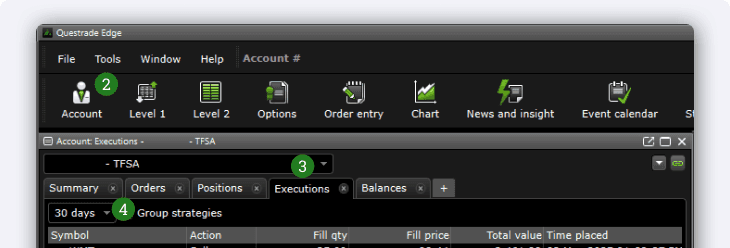
By default, the platform will show you key information about your executions such as symbol, action (buy or sell), quantity, fill price, total value, and time placed. However, you can add more data that is most relevant to you.
To do so:

Click the down arrow
Click Edit columns
The charts below will define all of the fields you can add to your Execution tab.
Column | Description |
|---|---|
Symbol | The ticker symbol for the security |
Action | Indicates your trade action |
Fill qty | The amount of shares/contracts that have been filled |
Fill price | The price you paid or received for your execution |
Total value | The total cost of the execution |
Time placed | The time at which the order was placed |
Cross zero ID | The unique identifying number assigned by us to each cross zero order |
Currency | The full name of the security |
Description | The length of time the order stays active until it is filled or expires |
Duration | The listing exchange for the security |
ECN fees | Fees charged by the electronic communication network (ECN) |
Exec fees | The unique identifying number assigned by the trading venue to each execution |
Exec ID (exch) | The unique identifying number assigned by the trading venue to each execution |
Exec time | The time at which the order was executed |
Limit price | The price you are willing to pay or receive |
Strategy type | The type of multi-leg strategy for your option contract (e.g., covered call, married put, condor call, etc.) |
Option type | Identifies whether your option contract is a call or put |
Order ID | The unique identifying number assigned by us to each order |
Order ID (exch) | The unique identifying number assigned by the trading venue to each order |
Order type | The order type used (e.g., market, limit, or stop) |
Parent ID | The unique identifying number assigned to a primary order that has multiple related orders (e.g., bracket orders, trailing-stop orders, etc.) |
Qty | The amount of shares/contracts requested for the order |
Route | The preferred trading venue to send the order to |
SEC fee | Fees charged by the Securities Exchange Commission (SEC) |
Security ID | The unique identifying number assigned to the security |
Source | Indicates where the order was placed from |
Special inst | Identifies any special instructions for the order |
Sub-route | The alternative trading venue to send the order to if the primary exchange is unavailable |
Venue (actual) | The exchange or alternative trading system (ATS) where the order was executed |
Venue (sent) | The exchange or alternative trading system (ATS) the order was sent to |