Orders and executions
Published: Oct 17, 2022
Updated: Apr 30, 2025
Understand your orders and executions using the Questrade Edge Mobile app.

The Orders page is where you’re able to view your open and executed orders for your account(s). You can also see your live streaming balances at a glance which makes it easy to access all the information you need in real time.
These pages will contain detailed information about your trades, and also give you quick access to modify or cancel an order that has not executed yet.
Note: Securities shown are for illustrative, educational, and visual purposes only, and should not be relied upon as financial advice. The information provided is not intended to be and should not be construed as a recommendation, offer, or solicitation to buy or sell.
Switch between viewing the orders for All accounts, or view a specific account.
Swipe left or right to scroll through viewing accounts individually or combined.
Choose which currency your balances are shown in, toggle between Combined in CAD or Combined in USD.
Your various account balances are visible at the top, tap the See all balances button to view more detailed information.
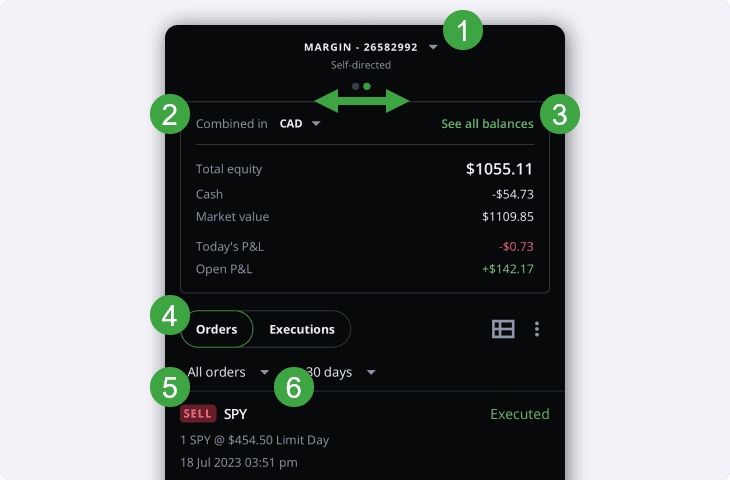
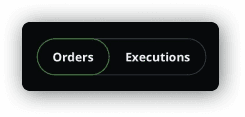
4. Switch between viewing all Orders or just Executions.
5. Switch between viewing All orders, Open orders, or Executed orders.
6. Toggle between viewing different time ranges up to 30 days.
For more details about executions past 30 days, you can also view your trade confirmations (opens in a new tab) for up to 7 years.
The function buttons above your orders also unlock more customization options:
The left button with the grid toggles between a simplified view of your orders, or a more detailed view with additional, customizable columns of information.
The 3 dots button on the right brings up a menu with options to Sort your view, or enter a full screen landscape view.
If you have the more detailed view turned on, this menu also allows you to add or remove additional columns of information.
You can also rotate your phone to landscape to take advantage of the extra screen real estate to view more detailed information.
Let’s take a closer look at how your orders are displayed (in the simplified view):
At the top left, you’ll see the ticker symbol of the security, along with the action (Buy or Sell).
You can also see how many shares are in the order, and the order type that was used.
If you used a Limit order, you’ll also see your limit price.
The date and time your order was placed is also visible here.
The order status is also visible at the top right, learn more about order statuses in this article.
Lastly, if an order has not been executed yet, you’re able to edit or cancel using the pencil, or trash can icons.
Detailed orders and executions
When you tap the grid button above your orders or enter full screen, you’ll see a rich, detailed view of your orders/executions in columns and rows.
Tap on any of the column headers like Symbol or QTY to organize your orders ascending or descending according to that specific column.
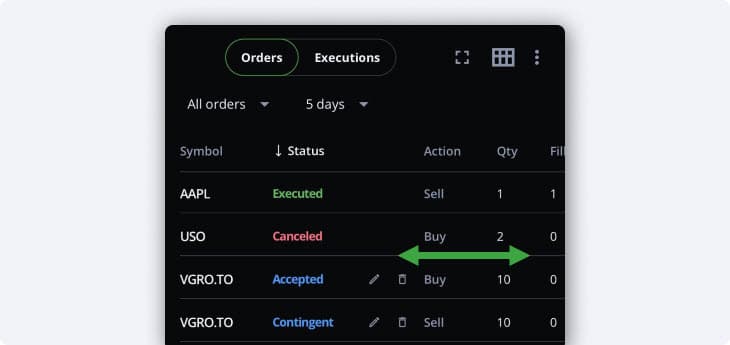
Scroll to the left and right to view more columns of information about your orders and executions.
Remember, you can always use full screen mode in landscape view to see more information at once.
The default columns shown are:
Symbol: The ticker symbol of the security
Status: The order’s status (whether it was accepted, rejected, executed or replaced)
Action: The action performed, whether it was a buy or sell
QTY: The number of shares (or contracts for options) that were bought or sold
Fill QTY: The number of shares filled in the order (Partial orders and those in-progress are shown here.)
Limit Price: The limit price used for the order (if one was used)
Stop price: The stop price used for the order (if one was used)
Fill price: The price the order filled, or executed at
Duration: The duration used for the order (Day, GTD, GTC…)
Order type: The type of order used (Market, limit, stop…)
Order time: The time the order was placed
Account (if viewing all accounts): Which account was used for this order
If you’re interested in viewing more information about your orders such as your route, total fees or much more, you can enable additional data columns using the menu button with 3 dots.
Edit columns
On the Edit columns window, you’re able to add additional data points to your orders and executions page, and re-order your columns however you’d like.
Drag and drop the displayed columns to whatever order you’d like.
Hide the columns you don’t need.
Add columns of additional information to your positions page.
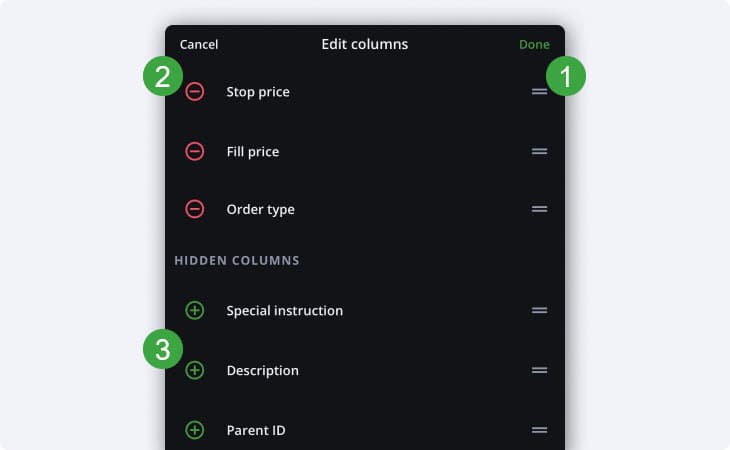
The additional columns of information available are:
Special instruction
Description
Parent ID
Route
Sub-route
Venue
Total fees
Days to expiry
Exchange ID
Updated time
Notes
Trigger price
Order ID
Bracket ID
Bracket order
And if you switch to viewing executions only, even more data points are available to add as custom columns in the detailed view:
Qty
Venue (actual)
Venue (sent)
SEC Fee
ECN Fee
Currency
Description
Source
Special instruction
Sub-route
Route
Execution ID (exchange)
Execution ID
Order ID (exchange)
Order ID
Parent ID
Notes