Investor platform personalization
Published: Oct 17, 2022
Updated: Jun 02, 2025
Discover the personalization features available on the Questrade Trading and QuestMobile platforms.
Whether you're trading from home or on the move, personalization features enhance your trading experience. Learn how to make these custom settings work for you, and make the Questrade platforms yours.
Home Page preference
The Questrade Trading platform allows for a personalized Home page experience.
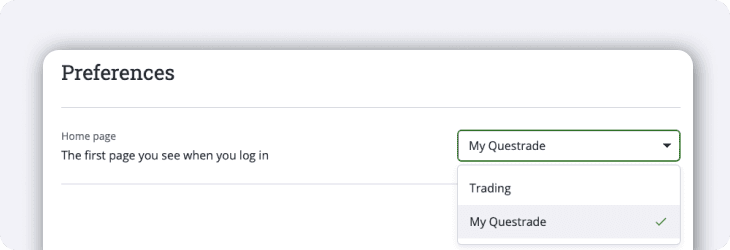
If you want to dive straight into the markets, you can set the Trading page as your home page. Or, you can select My Questrade for an overview of your account and investments.
Customizing your home page allows you to create a personalized trading experience that aligns with your investment strategy and saves you time.
Home page preference is available on the Questrade Trading platform.
To change your home page, log in (opens in a new tab) to Questrade, select your Name in the top right corner, click Settings, and then choose Preferences.
Risk Tolerance Questionnaire (RTQ)
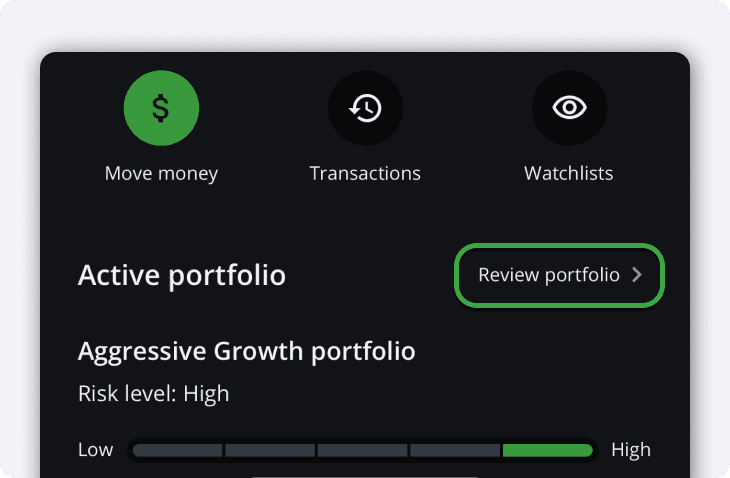
Questwealth Portfolios accounts feature a Risk Tolerance Questionnaire (RTQ), allowing you to easily review and retake the questionnaire.
If your financial situation or goals have changed, you can retake the questionnaire at any time by selecting
Review Portfolio
. Based on your new risk profile, we will match you with a new portfolio.
The Risk Tolerance Questionnaire is available on the QuestMobile app and on the Questrade Trading platform.
To find the Risk Tolerance Questionnaire on QuestMobile, log into your account on the app, scroll down below your chart, and select Review Portfolio.
To retake the questionnaire online, log in (opens in a new tab) to Questrade through a web browser, select the Menu icon in the top left corner, head to Accounts, Account Management, and then choose Redo Questionnaire.
Customizable Watchlists
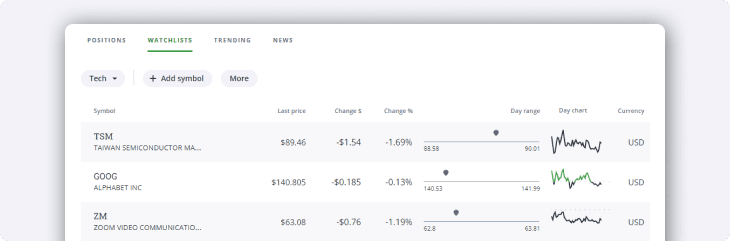
Note: Securities shown are for illustrative, educational, and visual purposes only, and should not be relied upon as financial advice. The information provided is not intended to be and should not be construed as a recommendation, offer, or solicitation to buy or sell.
The markets move fast, and we want to help you move even faster. With our trading platforms, you can create personalized watchlists so you can follow the securities you’ve got your eyes on. This also allows you to organize and align your portfolio to your goals before investing.
We also provide standard watchlists that track certain exchanges, indices, and more to help you follow the financial markets.
Watchlists are available on both the Questrade Trading and QuestMobile platforms.
Explore our guides on how to create and customize your Questrade Trading Watchlists and QuestMobile Watchlists.
Order Entry preference
Every trader has unique preferences when it comes to placing orders. Personalize your Order Entry Preference to suit your trading style.
Choose between the Multi-page Order Entry or Single-page Order Entry.
Multi-page Order Entry (Default):
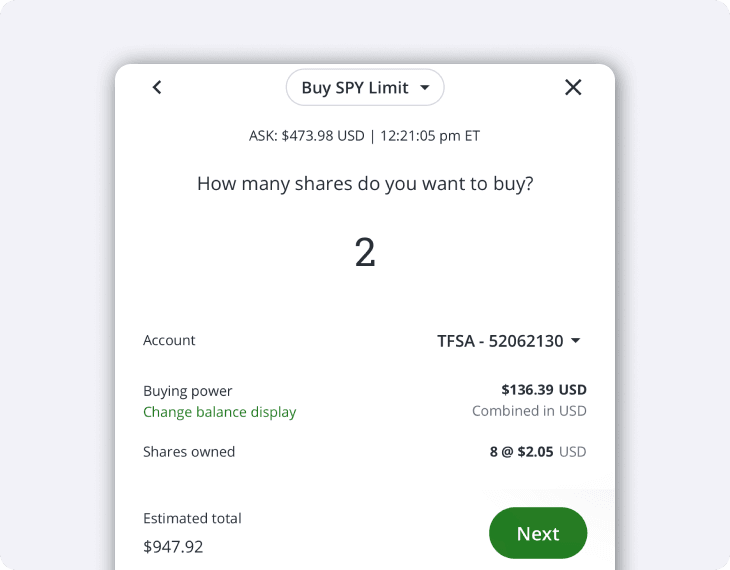
This view offers a guided, step-by-step approach to order entry. It's ideal for ensuring every part of your trade is carefully considered.
If you’re just getting started, this can help you review every step of your order to make sure you understand your change in balances and more.
Single-page Order Entry:
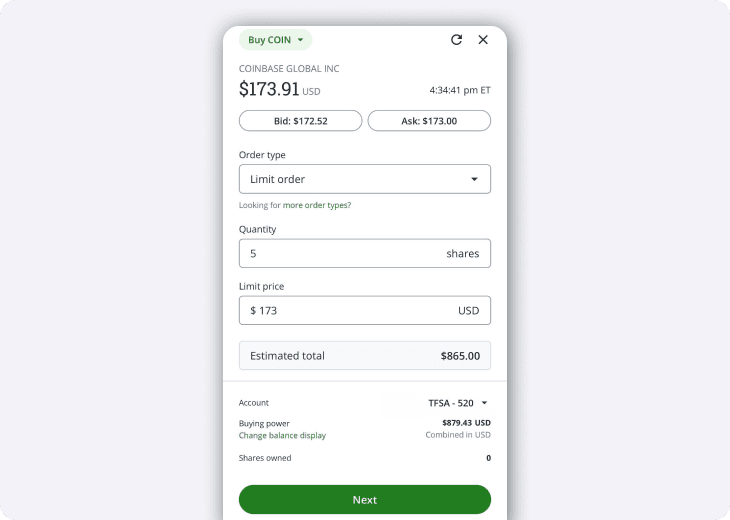
Designed for more experienced traders who prefer efficiency, all the required fields for placing an order are on one page, helping you trade in quick-moving markets.Both order entry types offer a seamless trading experience, letting you focus on your strategy.
Order entry preference is available on the Questrade Trading and QuestMobile platforms.
On QuestMobile, set your default order values by tapping the Menu icon in the top left, heading to Settings, selecting Investing, and choosing Order entry preference.
From the Questrade Trading platform, select the Menu in the top left corner, head to Accounts, and then go to Trading. On the Trading page, select the Preferences icon located in the top right area of the screen.
Default order values
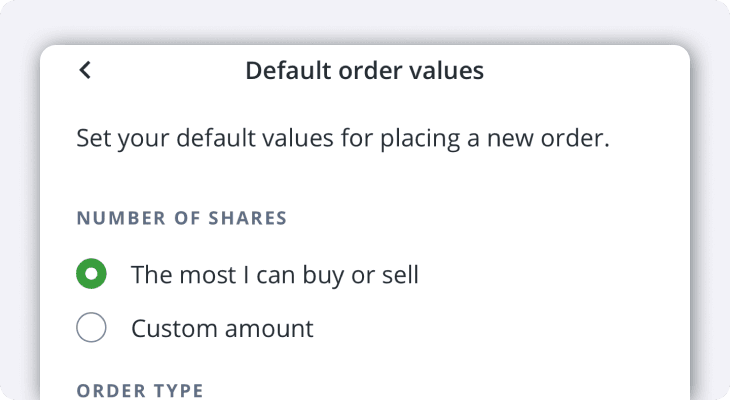
Customize your Default order values to match your investment preferences. Trade with precision and speed, knowing each order matches your strategy.
Change values such as:
Number of shares: The amount of shares to buy or sell.
Order type: The conditions under which a trade is executed.
Limit order duration: The time frame a limit order remains active.
Discover all the Order types and Order durations offered on Questrade.
Customizing your Default order values is available on QuestMobile.
On QuestMobile, set your default order values by tapping the Menu icon in the top left, head to Settings, select Investing, and choose Default order values.
Extended Trading Hours
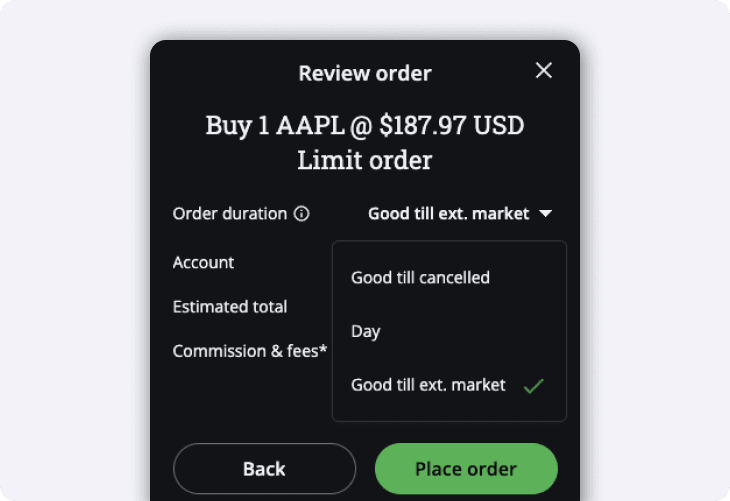
Take advantage of Extended trading hours and invest on a more flexible schedule. You can access pre and post-market trading on eligible symbols from 4 am ET to 8 pm ET, Monday to Friday.
Extended trading hours are available on both the Questrade Trading and QuestMobile platforms.
To learn how to trade during extended hours, read our article on pre and post market trading.
Dark mode
Personalize your trading platform with the colour themes Light mode and Dark mode. It's all about making your trading environment as comfortable as possible.

Light mode is great for bright settings, offering the classic screen look. Dark mode provides an eye-friendly alternative, perfect for low-light areas or long-term use.
Dark mode is available on the Questrade Trading and QuestMobile platforms.
To enable Dark mode on QuestMobile, tap the Menu on the top left corner, select Settings, go to General, and then choose Theme.
For the Questrade Trading platform, select the Menu in the top left corner, head to Accounts, and then go to Trading. On the Trading page, select the Preferences icon located in the top right area of the screen and then under Colour theme select Dark mode.
Discreet mode
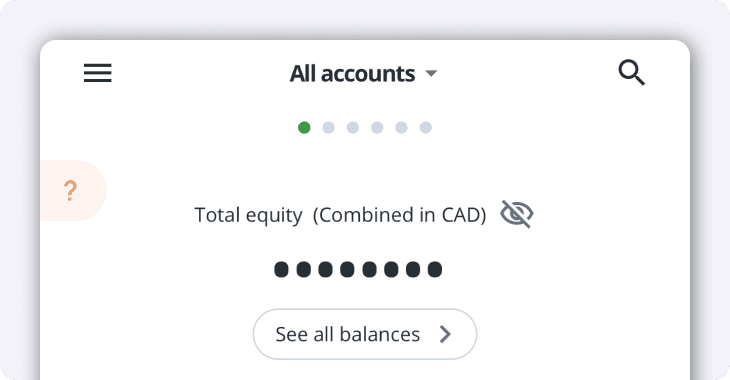
Enhance your trading privacy with ease using our Discreet mode feature. This feature keeps your Total Equity balance private, allowing you to manage your investments with greater peace of mind.
Discreet mode is available on both the Questrade Trading and QuestMobile platforms.
To enable Discreet mode on QuestMobile, tap the Menu icon in the top left corner, head to Settings, select Investing, and toggle on Discreet mode. Note: This feature is automatically enabled in the Questrade Trading platform.
Account nicknames

Make navigating your accounts easier with Account nicknames. This handy feature lets you give each of your accounts a unique nickname. It's a quick and easy way to identify and organize your investments.
Account nicknames are available on both the Questrade Trading and QuestMobile platforms.
To set up your nicknames on QuestMobile, tap the Menu icon in the top left corner, head to Settings, select Investing, and then Accountnickname. Here you can select Addnickname on your account(s) for easy identification.
For the Questrade Trading platform, select the Menu in the top left corner, head to Accounts, and then go to Trading. On the Trading page, select the Preferences icon located in the top right area of the screen and then choose Addnickname.
This view offers a guided, step-by-step approach to order entry. It's ideal for ensuring every part of your trade is carefully considered.
If you’re just getting started, this can help you review every step of your order to make sure you understand your change in balances and more.
Single-page Order Entry:
Designed for more experienced traders who prefer efficiency, all the required fields for placing an order are on one page, helping you trade in quick-moving markets.Both order entry types offer a seamless trading experience, letting you focus on your strategy.
Order entry preference is available on the Questrade Trading and QuestMobile platforms.
On QuestMobile, set your default order values by tapping the Menu icon in the top left, heading to Settings, selecting Investing, and choosing Order entry preference.
From the Questrade Trading platform, select the Menu in the top left corner, head to Accounts, and then go to Trading. On the Trading page, select the Preferences icon located in the top right area of the screen.
Default order values
Customize your Default order values to match your investment preferences. Trade with precision and speed, knowing each order matches your strategy.
Change values such as:
Number of shares: The amount of shares to buy or sell.
Order type: The conditions under which a trade is executed.
Limit order duration: The time frame a limit order remains active.
Discover all the Order types and Order durations offered on Questrade.
Customizing your Default order values is available on QuestMobile.
On QuestMobile, set your default order values by tapping the Menu icon in the top left, head to Settings, select Investing, and choose Default order values.
Extended Trading Hours
Take advantage of Extended trading hours and invest on a more flexible schedule. You can access pre and post-market trading on eligible symbols from 7 am ET to 8 pm ET, Monday to Friday.
Extended trading hours are available on both the Questrade Trading and QuestMobile platforms.
To learn how to trade during extended hours, read our article on pre and post market trading.
Dark mode
Personalize your trading platform with the colour themes Light mode and Dark mode. It's all about making your trading environment as comfortable as possible.
Light mode is great for bright settings, offering the classic screen look. Dark mode provides an eye-friendly alternative, perfect for low-light areas or long-term use.
Dark mode is available on the Questrade Trading and QuestMobile platforms.
To enable Dark mode on QuestMobile, tap the Menu on the top left corner, select Settings, go to General, and then choose Theme.
For the Questrade Trading platform, select the Menu in the top left corner, head to Accounts, and then go to Trading. On the Trading page, select the Preferences icon located in the top right area of the screen and then choose Add nickname.
Discreet mode
Enhance your trading privacy with ease using our Discreet mode feature. This feature keeps your Total Equity balance private, allowing you to manage your investments with greater peace of mind.
Discreet mode is available on both the Questrade Trading and QuestMobile platforms.
To enable Discreet mode on QuestMobile, tap the Menu icon in the top left corner, head to Settings, select Investing, and toggle on Discreet mode. Note: This feature is automatically enabled in the Questrade Trading platform.
Account nicknames
Make navigating your accounts easier with Account nicknames. This handy feature lets you give each of your accounts a unique nickname. It's a quick and easy way to identify and organize your investments.
Account nicknames are available on both the Questrade Trading and QuestMobile platforms.
To set up your nicknames on QuestMobile, tap the Menu icon in the top left corner, head to Settings, select Investing, and then Accountnickname. Here you can select Addnickname on your account(s) for easy identification.
For the Questrade Trading platform, select the Menu in the top left corner, head to Accounts, and then go to Trading. On the Trading page, select the Preferences icon located in the top right area of the screen and then choose Addnickname.