Hotkeys
Published: Oct 17, 2022
Updated: Oct 20, 2022
Learn how to use hotkeys in Questrade Edge Desktop for convenience.
Hot keys are an effective way for traders to minimize the time it takes to perform trade-related activities. This feature allows users to quickly place buy & sell orders, change pricing and order quantity, cancel pendiqing transactions, navigate through workspaces, and more.
All with the press of one or two buttons, and with the ability to customize to your content.
How to turn on Hotkeys:
Log in to Questrade Edge Desktop
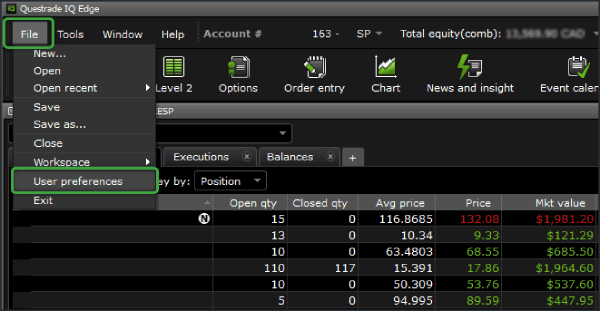
Click the File menu from the top-left, then click User preferences
From the User preferences menu, click the Hotkeys tab near the top-right
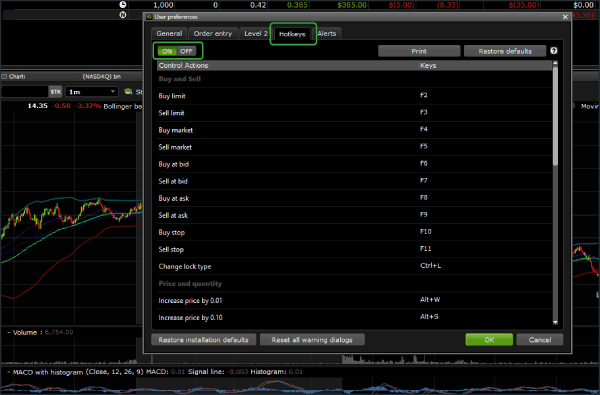
You can turn Hotkeys On or Off from this menu anytime.
To customize the specific keys, simply click on the relevant key, and press a button on your keyboard
If you have a programmable keyboard or mouse, you may need to ‘bind’ your custom keys before you can use them in Edge Desktop
You can also print your hotkeys at any time for easy reference
Please note: Hotkeys have their advantages and disadvantages. While they allow for very quick order execution and modification, they can also put you at risk of a ‘fat-finger’ trade that you do not mean to enter.
We highly recommend keeping your order confirmation notification active for this reason, this way you can double-check your order’s details before they’re sent to the exchange.
Hotkeys are only available for Questrade Edge Desktop users.